 Download KrispCall
KrispCall x ConstantContact

Constant Contact Integration Overview


Turn Every Marketing Engagement into a Meaningful Customer Interaction

Connect with Leads While Interest is High

Personalize Every Customer Interaction

Support Every Stage of the Customer Journey

Build Stronger Relationships Across Every Channel
Install KrispCall Browser Extension Instant Calling
The KrispCall browser extension embeds directly into your ConstantContact interface. Click any contact number to start a call immediately, with no app switching and no interruptions to your workflow.

Reach Contacts From Within ConstantContact
Call any prospects and customers directly from your ConstantContact workflow with KrispCall’s web dialer. Every call starts faster, so your team can focus on building relationships instead of managing tabs.
Connect with contacts after they open an email, submit a form, or express interest in your business. With fewer steps between engagement and outreach, your team can respond promptly, turning a prospect into a potential customer.
Keep Contact Information Consistent Across Both Platforms
Contacts added or updated in ConstantContact automatically reflect in KrispCall, and vice versa. Keep customer information accurate across both platforms, reduce manual imports, and avoid calling outdated or duplicate numbers.
Your contact records stay organized and accessible to your entire team. Whether you’re launching an email campaign or following up with a phone call, everyone works from the same up-to-date customer information, making every interaction more efficient and well-informed.
Quickly Follow Up with Business Text Messages
Some conversations don’t require another email or a lengthy phone call. Integrate KrispCall with ConstantContact and send business SMS messages directly from your ConstantContact workflow using your business number.
Whether you’re sending a quick follow-up or responding to customer inquiries, every message helps keep the conversation active without adding extra steps to your team’s workflow.
Keep Every Conversation Within Easy Reach
Connect KrispCall and ConstantContact and keep your call recordings and voicemails in one organized place. Revisit any previous discussions with ease whenever your team needs additional context before reaching out again.
Maintain consistency across every interaction and review calls to support coaching, maintain service quality, and ensure customer requests are handled accurately.
Instantly Capture Every Important Detail
Reps can jot down notes right after a call, tagged to the same contact record used in ConstantContact. Details like objections, interests, or next steps stay attached to the lead instead of living in someone’s memory.
Detailed notes give everyone on your team the context they need before the next conversation. Instead of asking customers to repeat themselves, your team can continue where the last interaction ended and provide a more informed, personalized experience.
Benefits of Integrating ConstantContact with KrispCall

Fewer Missed Opportunities

Consistent Data Across Teams

Improved Team Efficiency

Better Experience for Every Contact
Simplifying Customer Outreach for Marketing, Sales, and Customer Success Teams
Deal Teams

Sales Teams

Customer Success Teams


Integrate Affinity with With KrispCall Easily with Our Guide
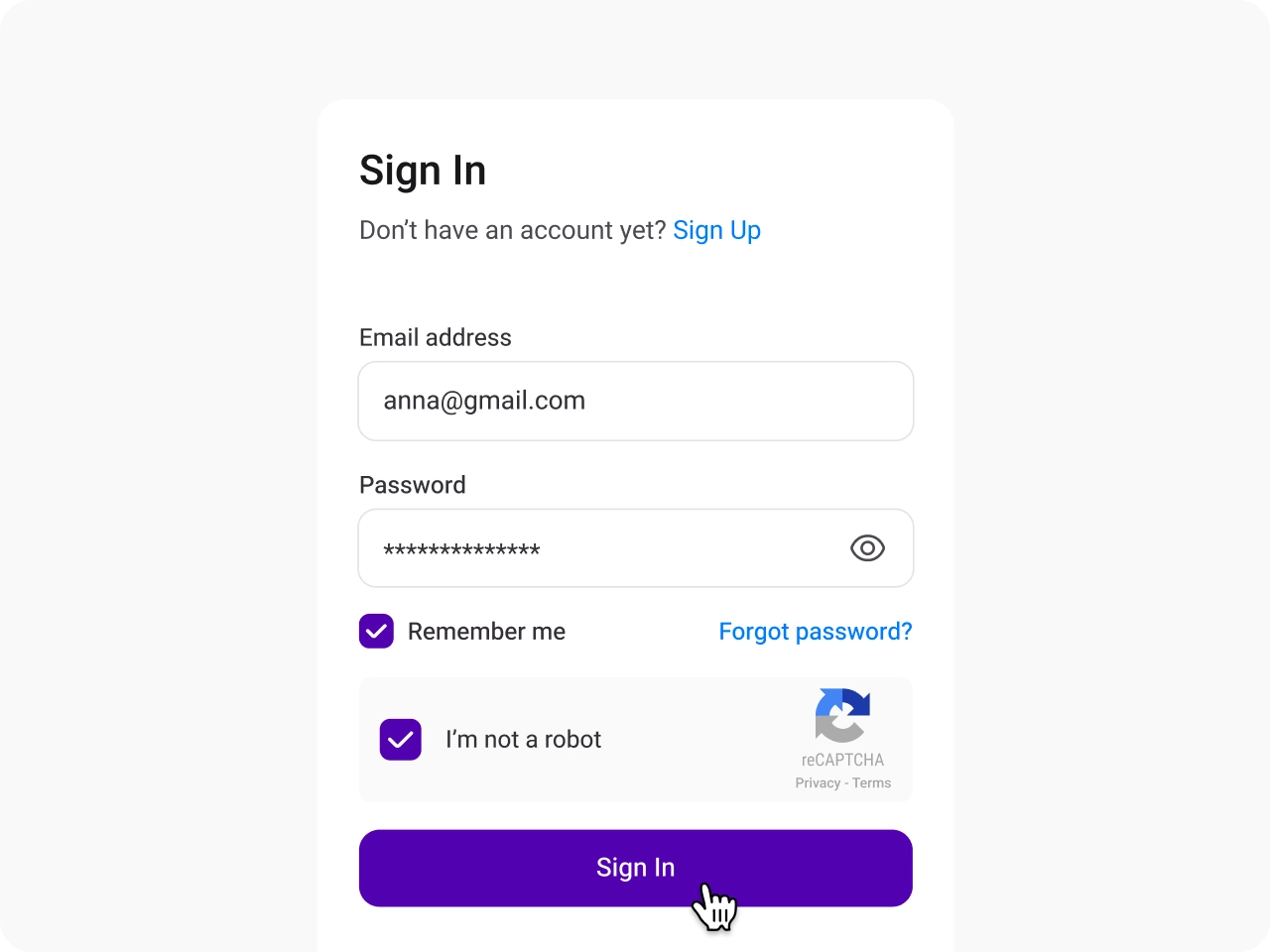
Log in to KrispCall
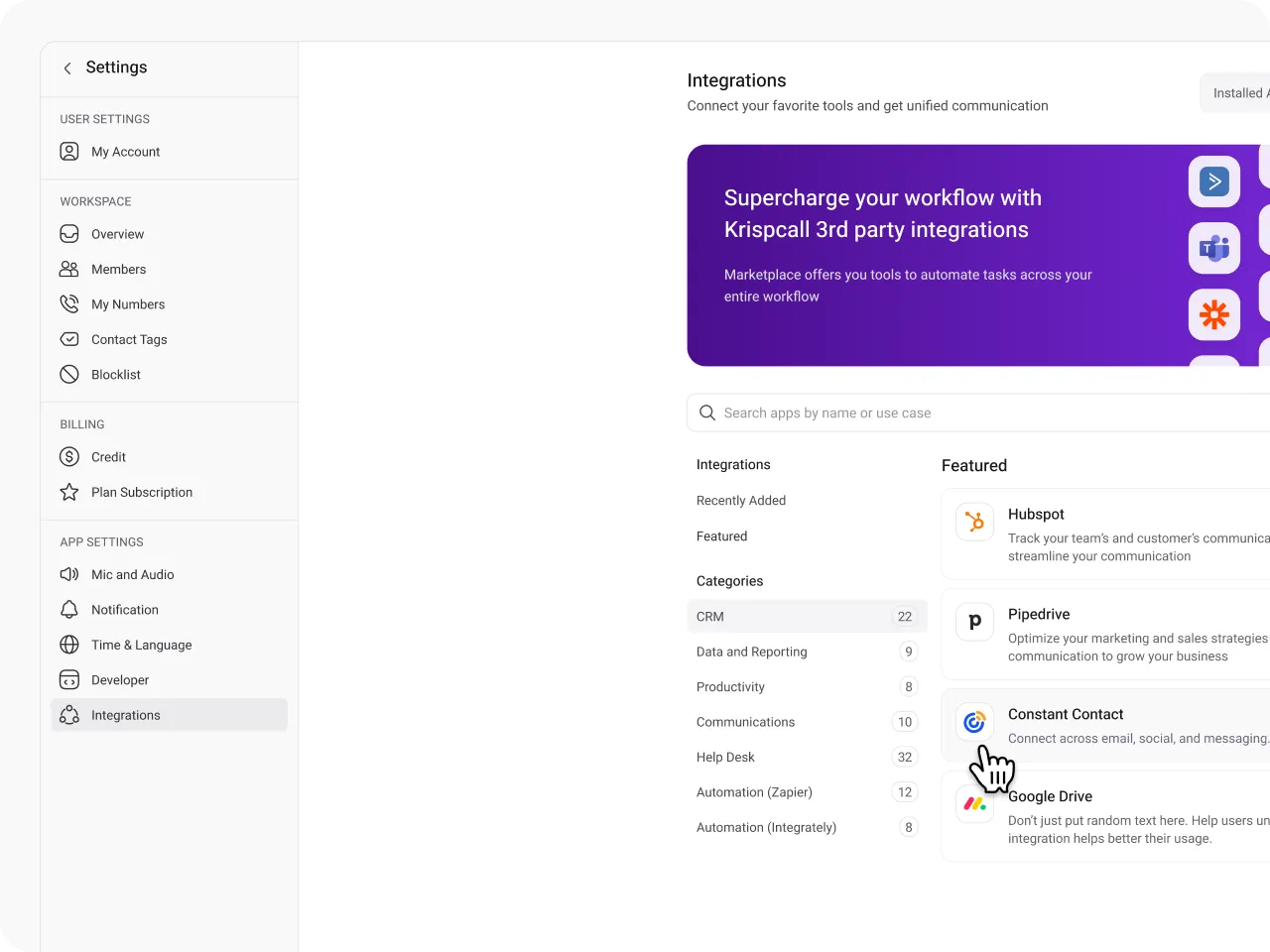
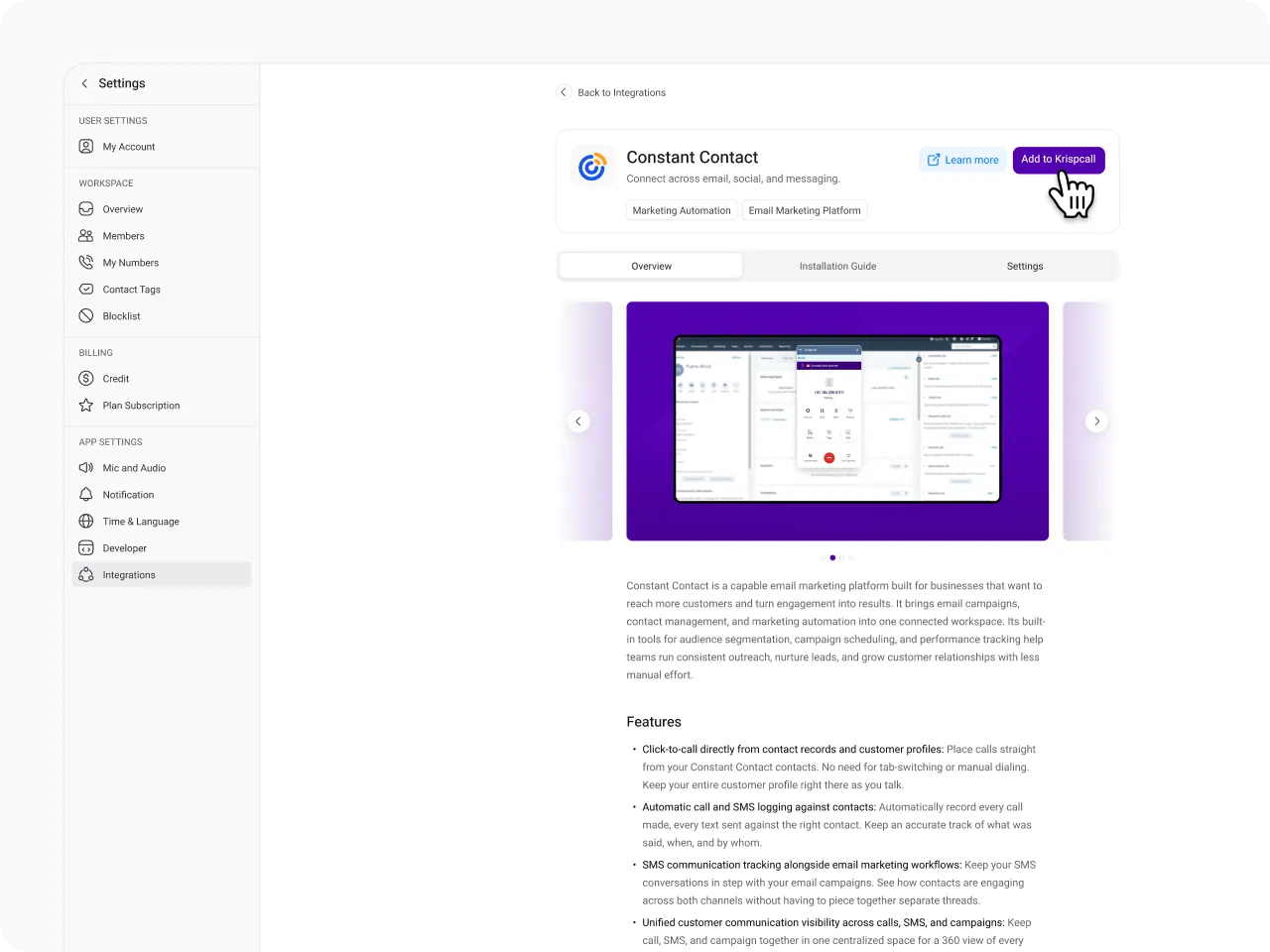
Log in to your KrispCall account, go to Settings, and click Integrations under App Settings.
Find ConstantContact
Search for ConstantContact in the list of available integrations and click it to open the integration page.
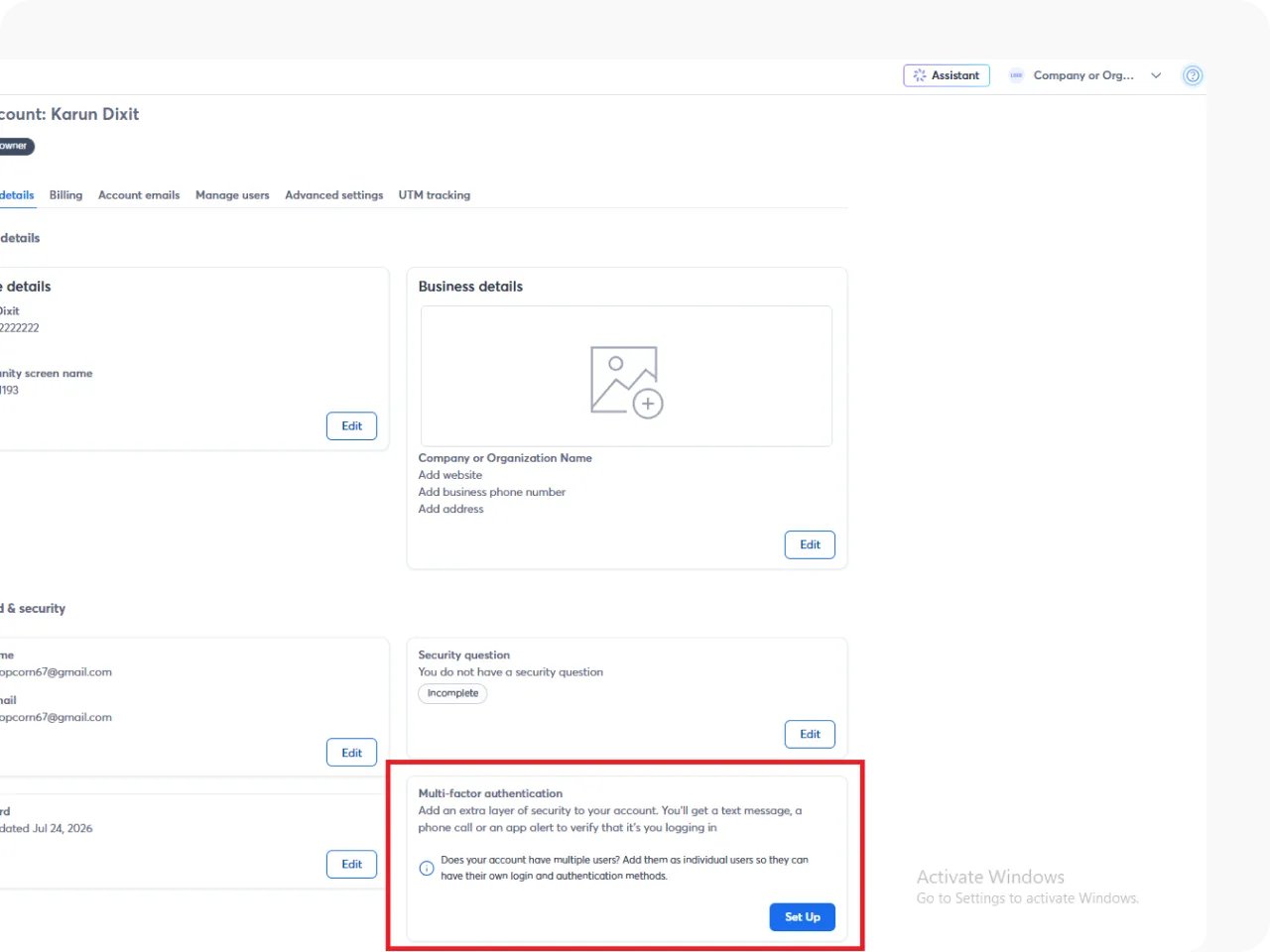
Enable Multi-Factor Authentication
Before connecting, enable MFA on your ConstantContact account. Go to ConstantContact's settings, scroll to Multi-Factor Authentication, click Setup, and choose your preferred authentication method.
Click Add to KrispCall
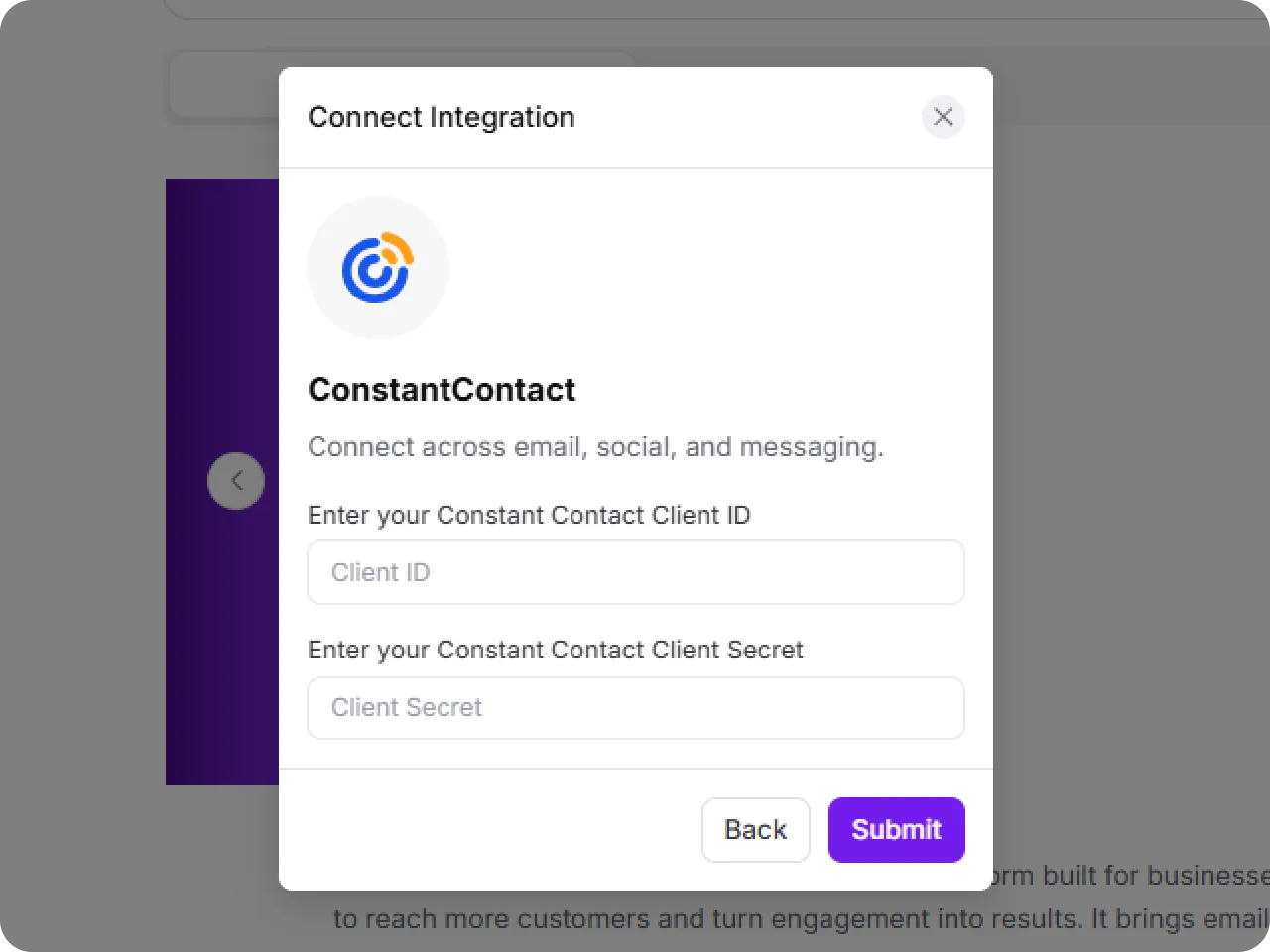
A pop-up window will appear asking for Client ID and Client Secret Key. To get these details, first you need to enable Multi-Factor Authentication in your ConstantContact application.
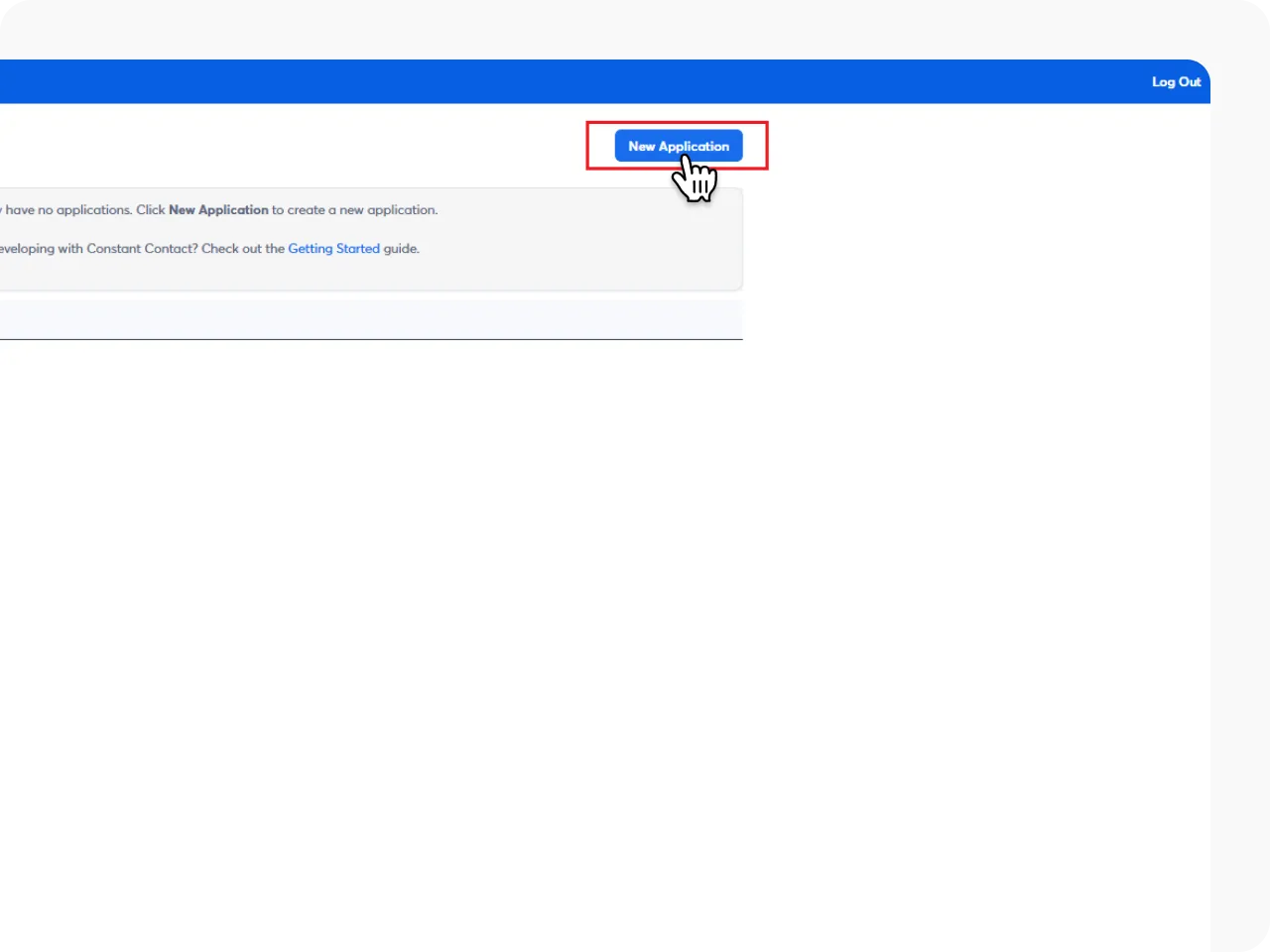
Create an OAuth Application
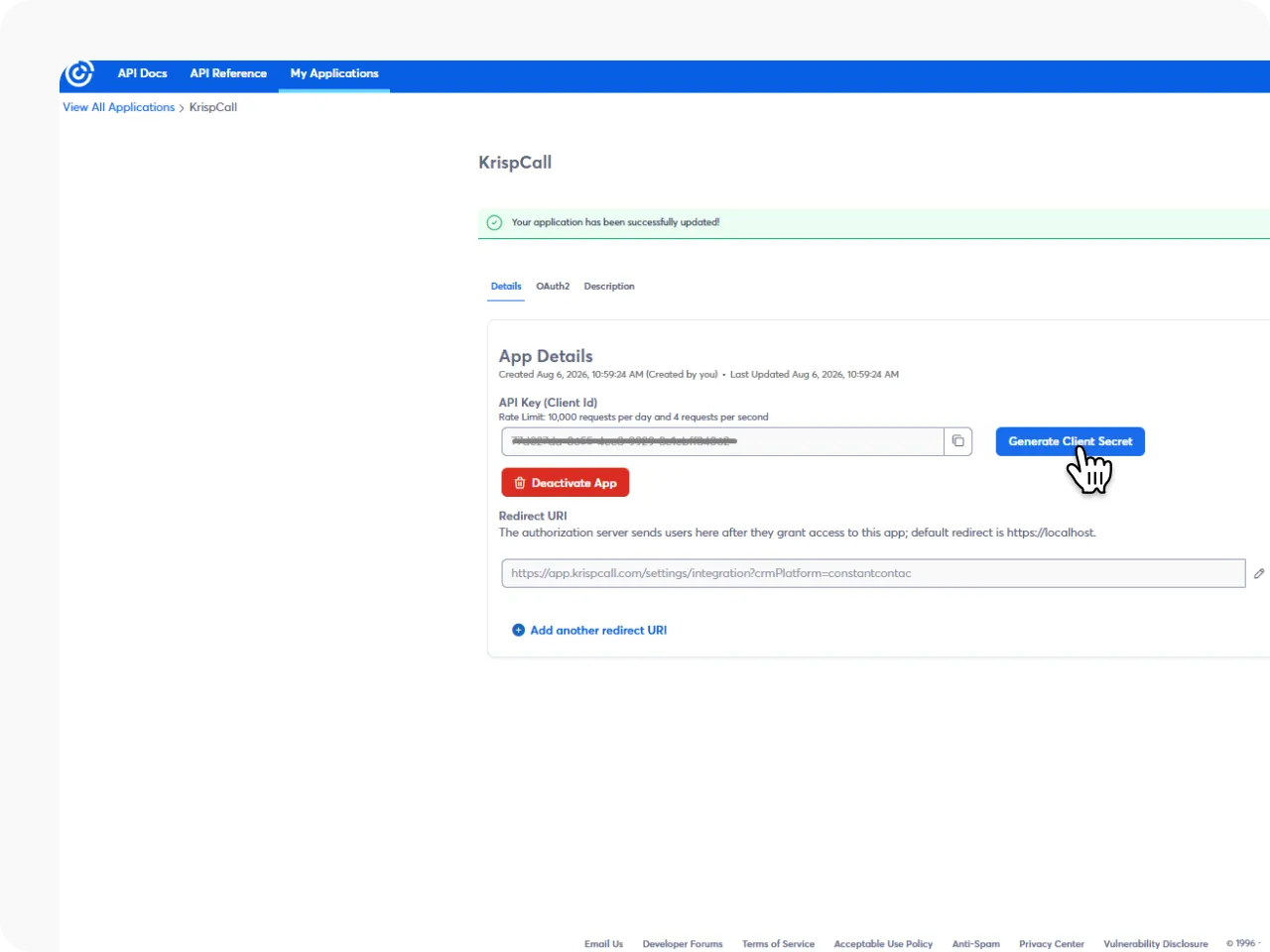
Visit the ConstantContact Developer portal and log in with your ConstantContact credentials. Create a new application and enter a name along with the necessary permissions.
Set Up the Redirect URI
Open your new app to view the Client ID, then enter this Redirect URI: "https://app.krispcall.com/settings/integration?crmPlatform=constantcontact"
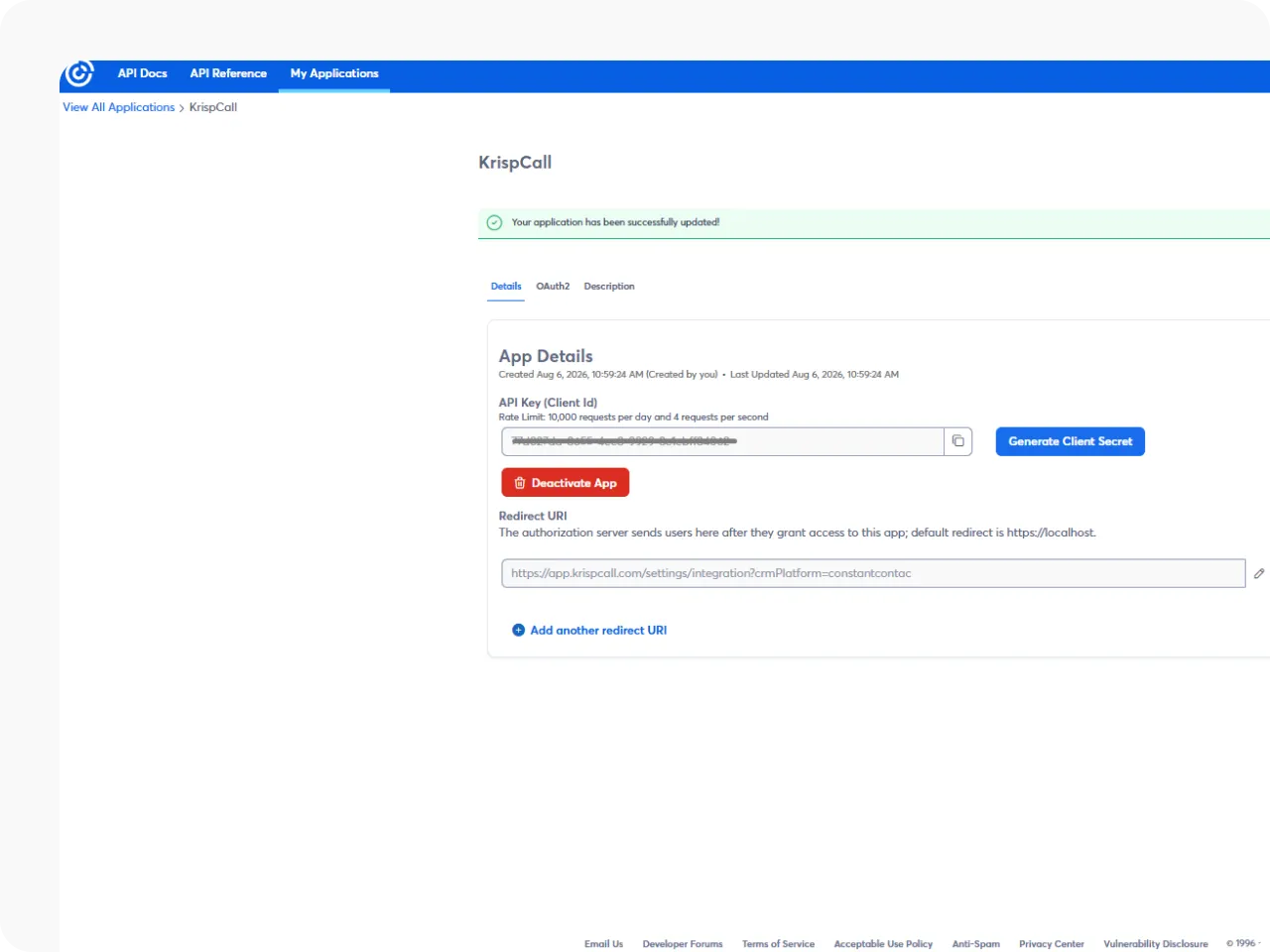
Generate the Client Secret Key
Click "Generate Client Secret" to view your Client Secret Key. This key is shown only once, so copy and store it somewhere safe.
Connect in KrispCall
Return to KrispCall, enter your Client ID and Client Secret Key in the pop-up window, and click Connect.
Install the KrispCall Chrome Dialer
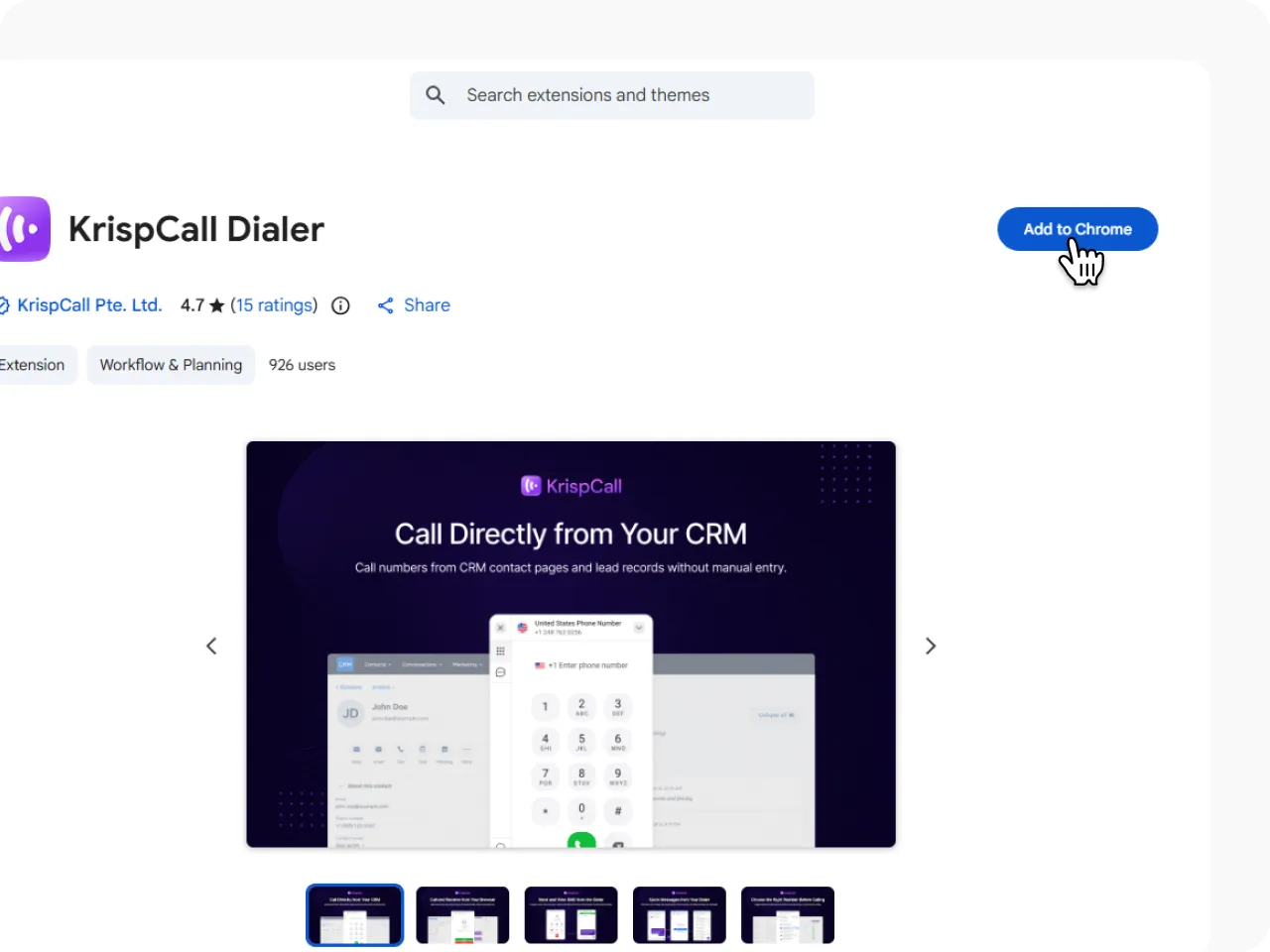
Search for the KrispCall Chrome Dialer in the Chrome Web Store, click Add to Chrome, then Add Extension. Once installed, sign in with your KrispCall account to start calling and texting directly from ConstantContact.
Frequently Asked Questions
Didn’t find the Answer you were looking for? Visit our Help Center or Contact Support
The KrispCall and ConstantContact integration connects your business calling and messaging with your email marketing platform. It helps your team manage contacts, place calls, send SMS, and keep customer information organized across both platforms.
Yes. With KrispCall’s Chrome Dialer, you can call contacts directly from ConstantContact using Click-to-Call functionality. This reduces the need to copy and paste phone numbers and helps your team connect with customers more quickly.
Yes. KrispCall allows multiple ConstantContact accounts to be integrated within the same workspace. Each integration has its own settings, so changes made to one account won’t affect the others.
Yes. ConstantContact requires MFA to be enabled before you can create the OAuth application needed to generate the Client ID and Client Secret Key used to connect with KrispCall.
