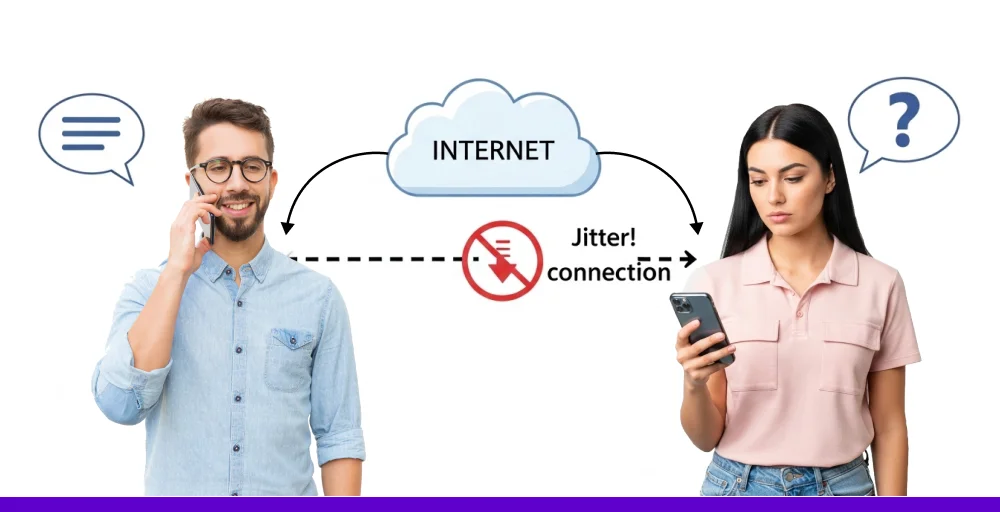
If you’ve ever been on a VoIP phone call and started experiencing choppy audio and distortions, you are facing jitters. It is an irregular fluctuation in latency that disrupts the smooth data transmissions. This issue especially impacts businesses relying on Voice Over Internet Protocol (VoIP) services like customer support contact centers.
Even the smallest delays or timing variations can degrade the experience.
In this blog, we’ll explain everything you should know about network jitters, including the common reasons behind this issue, the complications, how you can measure it, and how you can reduce it to maintain a consistent and stable communication network.
✨ Key Takeaways
- Network jitters are the irregular delays in latency that disrupt the smooth data transmission.
- Jitter is more common when there are issues with the network, whether it is due to overloaded traffic, limited bandwidth, or faulty hardware.
- Packet delay variation is especially problematic for applications or devices that need a steady flow of data.
- To reduce network jitters, troubleshoot the internet connection, use a wired (Ethernet) connection, use a jitter buffer, free up bandwidth, adjust router settings, prioritize data packets, and switch frequencies when needed.
What is network jitter?
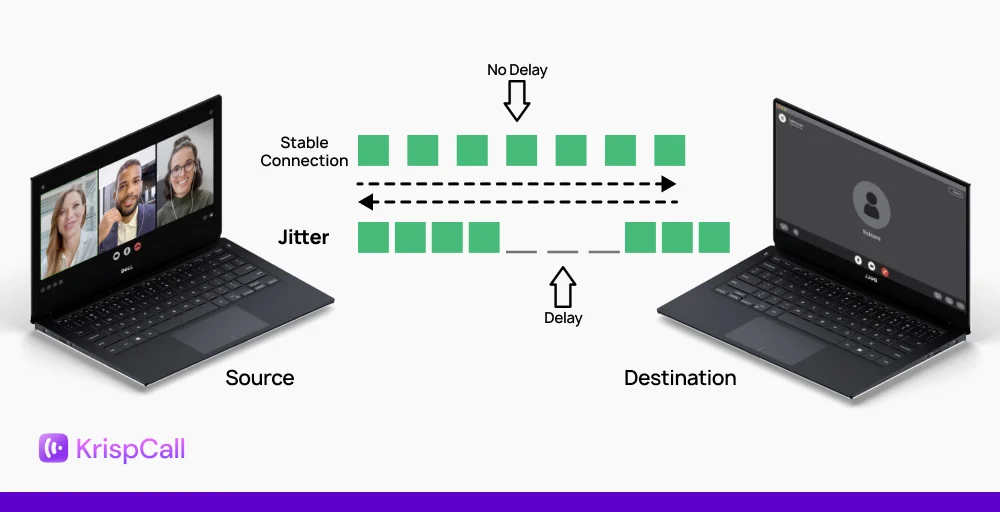
In internet-based communication, data is broken down into smaller digital packets and transferred over the internet in a given time interval. If the data packets fail to reach their destination on time or experience irregular delays that affect smooth transmission, it is called network jitter or packet delay variation (PDV).
This interference often causes problems for real-time apps that need a steady, reliable flow of data to function properly.
For example, it causes choppy or echoing audio in VoIP phone calls, lags and freezes in video calls, and unpredictable delays in online gaming.
What causes network jitters
Jitter typically occurs when the data packets are not received at a regular time interval. Multiple factors can contribute to this cause, ranging from overcrowded networks to faulty equipment.
The main reasons for network jitters are as follows:
- Congested traffic: If too many devices are connected and being used simultaneously, it can overload the network and lead to inconsistent data transfer.
- Insufficient bandwidth: Having a low bandwidth can often be restrictive and create issues while transferring large data volumes, leading to jittering.
- Faulty hardware: Faulty or outdated hardware equipment, like routers, switches, or even cables, can often be the limiting factor when transferring data packets.
- Network interferences: Wireless networks are more susceptible to interference, which can create inconsistent data transfer intervals.
- Packet loss: If some of the data packets are lost during the transference process, it can disrupt the flow and create jitters.
How to measure and test jitter?
Network jitters are typically measured in milliseconds (ms), and ideally, you want to keep this number as low as possible for a smoother experience. But, how much jitter is acceptable? The globally acceptable jitter threshold is less than 30ms, but this number can fluctuate depending on the specific use case and user activities.
For instance, HD video streaming, general internet browsing, and data transfers will work fine with a jitter around a 100-ms threshold or more. But if you’re Wi-Fi calling and jitter exceeds 30 ms, you’ll likely notice issues like choppy audio or delays.
To ensure delay variations are within the safe limits, you need to measure them accurately. Here are a couple of different methods that you can use:
Online speed test tools
Online tools are by far the most convenient way to measure network jitter. All you need to do is run the testing software on your web browsers. This will give you data such as the download and upload speed, latency, jitter, packet loss, etc.
Some of the most popular speed testing tools include Cloudflare, Fusionconnect, and Speedtest. You can perform multiple speed tests on different tools and compare the outcomes to get a more accurate result.
Ping test
Another way to test network jitter is via manually performing the ping test and calculating the differences between the sequential latencies. Although this method is a bit daunting compared to simply using online tools, it’s still a viable way to get approximate jitter values.
Here’s a step-by-step way to perform a network jitter test.
- Step 1: Press the Windows + R shortcut keys to open the Run dialog box and enter CMD to open the Command Prompt terminal. You can also use the PowerShell terminal for this method.
- Step 2: Type in ping [hostname or IP address] and Press Enter. This will send ping requests to the host indefinitely.
- Step 3: Once it completes, you’ll see the reply times listed (e.g., time=32ms). Write down or copy these values.
- Step 4: Calculate the absolute difference between each consecutive reply time. For example, If you get 30ms, 28ms, 33ms, the differences are: |30-28| = 2ms and |28-33| = 5ms.
- Step 5: Add all the difference values and divide by the number of differences (which is total replies – 1) to get the average jitter.
Here’s a table to give you a better understanding of what is a good jitter vs a bad one;
| Status | Jitter |
| Excellent | < 10ms |
| Good | 10 to 30ms |
| Average | 30 to 100ms |
| Poor | > 100ms |
What happens when jitter gets too high?
High jitters can often create multiple connectivity issues regarding online applications and real-time processes. It can degrade your experience with VoIP communication, video streaming, cloud gaming, data transferring, etc.
More specifically, it causes problems in:
- VoIP communication: As jitter delays smooth data transmission, it often makes your calls stuttery, choppy, or distorted. Video conferencing becomes laggy, pixelated, and freeze frequently. High jitter can also lead to frequent dropped calls, making it detrimental for teams that work remotely or in call centers.
- Online gaming: In cloud gaming, where consistent data transference is critical, jittering can degrade your experience. It introduces issues like the rubberbanding effect, delayed or missed inputs, and stutters, ultimately affecting the performance and responsiveness of the gameplay.
- Data transferring: High jitters mean larger delays between receiving data packets. This leads to slower data transfer speed and freezes. Moreover, frequent delays or dropped packets can also lead to missing files or data corruption.
- Smart IoT devices: Delay variation can affect the real-time communication with IoT devices, potentially disrupting the ecosystem. This delay can make it difficult to control smart home appliances that require immediate response. e.g., voice-enabled light, smart speakers, security system, etc.
- Real-time applications: Teams operating virtual desktops or running real-time monitoring tools are also disrupted by jitters. The data transference delay can increase the latency, making real-time applications feel unresponsive, whereas real-time analytics tools can create incomplete or inaccurate results.
How to fix network jitter?
Troubleshooting jitters is simple once you’ve pinpointed the cause. Here are a few different ways on how to reduce VoIP quality issues and restore network stability.
Test your connection
Start by testing your network, as most jittering issues occur due to a problematic internet connection. Contact your ISP if you have a faulty network to resolve the issue.
Use a wired connection
Wireless data transmissions are susceptible to interference, leading to delays and jitters. Try hardwiring your connection with a traditional Ethernet cable to see if that resolves the problem.
Increase bandwidth
Increasing your bandwidth by upgrading your internet plan ensures that you have sufficient capacity for smooth data transfer. Furthermore, you can also free up bandwidth for better VoIP codecs functionality by limiting the number of devices connected to the network concurrently.
Use a jitter buffer
A jitter buffer is a device that’s installed on your VoIP system. It helps to mitigate jitters by delaying and storing the incoming data packets. These briefly stored data packets are then sent to the receiver sequentially in order to smooth out the time intervals.
Prioritize data packets
If you primarily use your network for VoIP communication, then prioritizing data packets over other traffic can help to reduce jitters. However, ensure that your router offers Quality of Service (QoS) settings, as it is essential for configuring packet prioritization.
Use the right frequencies
Sometimes, using virtual phone services on incorrect connection frequencies can induce jittering (due to connection quality or stability issues). There are two types of frequencies, so choose the one that matches your current situation. e.g, 2.4 GHz has a wider range but lower speed, whereas 5GHz has a shorter range and higher connection speed.
The best way to avoid jitter and improve your VoIP call quality
Network jitters mainly occur due to poor connection, whether it is due to congested traffic, lower bandwidth, or even faulty hardware. This can induce many problems that can degrade your experience, such as poor VoIP communication quality, lags in online gaming, delayed responses in IoT devices, and more.
That’s the reason you must choose a reliable VoIP software that makes all the difference. KrispCall has been providing VoIP phone services with higher quality and minimal latency. We’ve helped 1000+ companies to smooth their business communication and present ourselves as one of the reliable cloud telephony solutions.
Remove call jitter from your worry list with KrispCall. Still doubting? Experience KrispCall with a virtual demo session – free of cost.