VoIP systems are everywhere and are increasing rapidly. In fact, it’s expected to grow to $236.25 billion in 2028 at a CAGR of 11.8% (GlobeNewswire). It demonstrates how businesses and individuals utilize VoIP for their daily communication needs.
However, even the best VoIP setups can encounter issues such as choppy audio, call drops during conversations, and negatively impact sound quality. With all of this, it’s easier to feel helpless when you don’t know the causes and how to fix common VoIP problems.
In this guide, we’ll cover the 8 most common VoIP problems, including their causes, fixes, and ways to prevent them before they arise. Keep reading to learn the practical tips that would help you communicate without any hassles.
✨ Key Takeaways
- The most frequent VoIP problems include choppy audio, dropped calls, echo, jitter and latency, no sound after connection, call failures, unexpected voicemail routing, and security vulnerabilities.
- Low bandwidth, poor network setup, faulty hardware, port issues, and outdated routers are among the leading causes of poor audio quality and dropped calls in VoIP systems.
- Preventive steps like making regular tests, using certified hardware, updating firmware, and checking QoS settings, and separating voice traffic on VLANs help minimize recurring VoIP issues.
8 Common VoIP Problems and How to Fix Them
Here’s a quick overview of the most common VoIP issues to be aware of and how to fix them:
| Issue | Cause | Fix |
| Choppy Audio | Low bandwidth or unstable connection | Use wired internet. Set up QoS to prioritize VoIP. |
| Dropped Calls | Network congestion or signal loss | Restart the router. Enable QoS. Check SIP settings. |
| Echo During Calls | Faulty headset or poor device placement | Use quality VoIP headsets. Lower speaker volume. |
| Jitter and Latency | Inconsistent packet delivery | Upgrade your router. Optimize network traffic. |
| No Sound After Connection | Incorrect audio device or firewall issue | Check audio input/output. Disable SIP ALG. |
| Unable to Make or Receive Calls | SIP block by ISP or port issue | Check firewall settings. Open VoIP ports. |
| Calls Going to Voicemail Unexpectedly | Routing or forwarding settings | Review call forwarding settings. Disable DND. |
| Security Violations | Poor encryption or exposed SIP ports | Use strong passwords. Enable firewall and VPN. |
1. Choppy audio or poor call quality
Choppy audio is one of the most common VoIP issues. It occurs when the packets for voice data arrive out of order or are delayed. This interruption could result in missing words, broken sentences, or a robotic voice during calls.
The primary reason is often the insufficiency of internet bandwidth. There may be other reasons as well, such as a weak Wi-Fi signal, outdated hardware, or having too many devices connected to the same network.
If you have a wireless connection, other factors can also contribute to interruptions, such as interference from walls, other electronic devices, or being too far away from the router.
How to fix choppy or low-quality audio?
Instead of a wireless connection, you can start with a wired Ethernet connection. While your wireless device may be convenient, it may not provide reliable VoIP connectivity. In that case, a wired connection can result in higher stability for better call quality.
Here are other quick fixes for choppy audio:
- Complete a speed test for VoIP to see your upload & download speeds. VoIP requires at least 100 kbps (kilobits per second) in both directions, and anything less can result in bad audio quality.
- Use Quality of Service (QoS) on your router. QoS will prioritize voice traffic over data. Your router will prioritize your VoIP calls over downloads, video streams, and apps running in the background.
- If you’re still getting poor audio, check for network jitter. Jitter happens when packets arrive out of order. To fix this, monitor your network Jitter and replace any outdated routers or switches.
- Avoid using cheap or unsupported devices. Use a certified VoIP headset to prevent audio distortion or echo from low-end mics.
2. Dropped calls
A dropped call occurs when the VoIP connection is interrupted before the conversation is completed. It is annoying, especially during client calls or team meetings. Common causes include network spikes, an unstable internet connection, or improperly configured SIP settings.
In most cases, the router can’t maintain the VoIP connection with your VoIP provider. This leads to insufficient bandwidth issues, incorrectly configured ports, or a firewall. Sometimes, your Internet Service Provider (ISP) may also block VoIP ports with no warning.
In addition to that, switching between Wi-Fi and mobile data when using mobile VoIP apps can also drop calls.
Moreover, another common reason can be SIP ALG (Session Initiation Protocol Application Layer Gateway). It tries to manage VoIP traffic, but instead it ends up breaking it.
How to troubleshoot dropped calls?
Here’s how you troubleshoot dropped calls:
- Check to see if your network may be overloaded with bandwidth. If several individuals have your service and are uploading files or streaming, it’s likely that your call may drop. You may have to limit traffic or switch to a higher speed plan.
- Next, check to see if you can enable QoS on your router; give VoIP traffic the highest priority so that calls remain stable in a busy network neighborhood.
- Third, check your router settings to see if SIP ALG can be disabled.
- Many people complain about SIP ALG interfering with the VoIP call flow. Most routers have a setting that you can disable for SIP ALG in the admin panel.
- If that does not stop the problem, check to see if your router is forwarding the correct ports that are required for VoIP. Your VoIP provider will have resources that specify what ports need to be open. Open those ports in your firewall or NAT settings.
- Finally, consider upgrading your router if it is more than three years old because the newer the router, the better the processing of VoIP traffic.
3. Echo issue
Echo must not be a non-familiar term, especially for those people who make calls in their daily lives. When you hear yourself back after a couple of seconds, then it’s the echo that often ruins the call.
Echo is one of the VoIP issues that typically occurs from a combination of audio equipment, feedback from the speaker, or delays on the network. It frequently happens when the output from a speaker re-enters the mic, which causes a feedback loop.
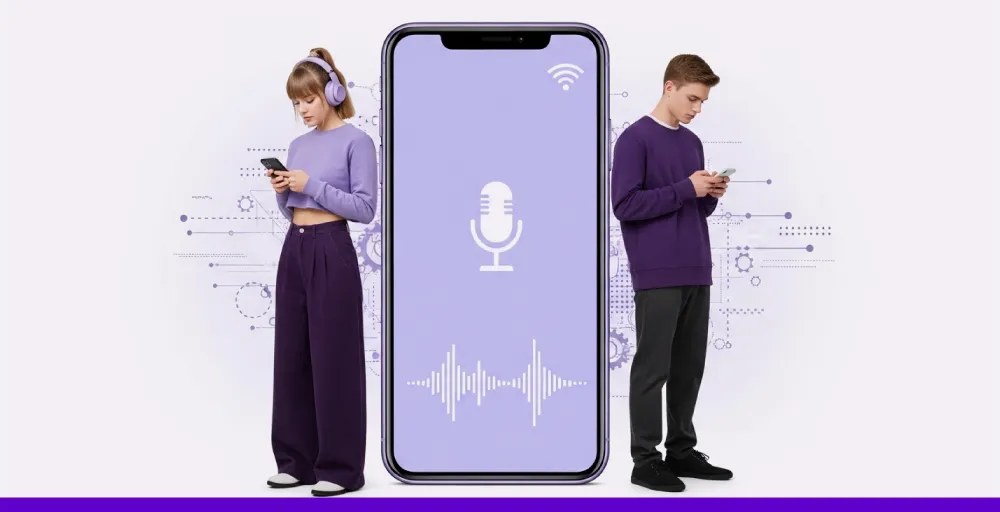
The source of the echo can come from cheap or poorly configured headsets, built-in microphones on laptops, or an external speaker. Sometimes, the echo can also originate from the other person’s device near you and not yours.
Additionally, latency is another reason for echo. Whenever the timing of the data packets gets delayed, the voice occurs late on the recipient side, resulting in a sound like an echo.
How to fix phone echo?
The fastest fix for echo is to use a high-quality, noise-canceling VoIP headset with a mic. It prevents the mic from picking up the other person’s voice again and repeating it. Therefore, avoid using mobile speakers during important calls and use earphones or headphones instead.
- If you are using a headset, ensure the microphone is not too close to the speaker and try lowering the volume on the speaker to reduce bleed sound.
- If you are using a professional headset, ensure that your softphone or VoIP app is updated. Outdated apps can create an echo on a software level.
- If the echo problem still appears, restart the device. A reboot will fix all caches and bugs if they’re causing the problem.
- When using a desk phone, check if the firmware version is updated. IP phones need updates to handle echo cancellation.
- Still hearing an echo? Run a network speed test where the latency over 150ms leads to voice delays. You can improve the connection by switching to a wired network or reducing any background traffic.
4. Jitter and latency
Jitter and latency happen when a time gap occurs in how voice data travels through your network. This results in the arrival of data packets out of order. In the worst case, it also leads to lost voices.
Reasons for these VoIP problems include poor routing by your ISP, overloaded networks, and cheap routers that are incapable of handling the traffic. While working remotely, the VoIP issue can get worse during peak usage hours.
How to fix jitter and latency?
Here’s what to do to fix jitter and latency in VoIP:
- Run a test to measure jitter and latency. If jitter is over 30ms or latency exceeds 150ms, you’ll hear delays or broken-up audio.
- Configure your router to enable Quality of Service (QoS). This gives VoIP packets top priority and smooths out delivery even during heavy usage.
- If your router is outdated, upgrade to a model that supports VoIP. Look for features like SIP support, bandwidth control, and traffic shaping.
- For businesses with global callers, use a VoIP provider that routes calls through data centers close to your region. This shortens the distance packets travel and reduces delay.
5. No sound after call connects
You’re calling a person just to end with, “ Hello, Hello, are you hearing me?”.
One-way audio is a common issue in VoIP. It is primarily caused by NAT issues, blocked ports, and firewall settings. In addition, the reason can also be that the device is selecting the wrong audio input or output.
Moreover, other causes include incompatible codecs, heavy network congestion, jitter, latency, and improperly configured VoIP phones.
How to fix a lacking audio?
Start by first understanding whether there is a problem with your headphone’s speaker or the other person’s mic. With this, the problem becomes easier to solve. Here are other quick fixes:
- Ensure that your mic and speakers are selected in your device settings. You can test by switching your headset, Bluetooth devices, or laptop speakers for testing.
- Check your firewall and router settings. If VoIP ports are blocked, you will not get the audio. Open the needed UDP ports, which are listed by your VoIP provider.
- Another important factor to check is whether your router supports NAT traversal, as it is the core technique that lets audio travel across the internet without any issues.
If nothing works out, and you’re still not getting the audio after connecting your calls. It’s time to switch your Wi-fi because your network can also block VoIP traffic in some cases.
6. Unable to make or receive calls
Being unable to make or receive calls is a frustrating VoIP problem that is associated with network structure and VoIP configuration. A major reason is SIP ALG, which is a feature of a router that modifies VoIP traffic.
Following that, another cause of calling inability is double NAT. Meaning, when two routers exist on the same network. Resulting in a blockage of VoIP packets reaching their destination, which leads to a signalling break call. And, your call never gets connected, even if connected, drops immediately.
How to troubleshoot call issues?
The good news is that you don’t need to worry about troubleshooting this feature. You just need to tweak some settings in your router, and you’re good to go.
- Disable SIP ALG in your router settings. Most commonly, you’ll find it in the admin panel under the advanced or NAT settings.
- Do not use two routers in the same network, but if it’s needed, put one of them in bridge mode to avoid double NAT.
- Place your VoIP phones on a separate VLAN for excellent performance. Create a new VLAN in your router > assign VoIP ports > and enable QoS to prioritize traffic.
After applying these changes, reboot your devices and test the connection again. In most setups, this fully restores both inbound and outbound VoIP call capability.
7. Calls unexpectedly forwarded to voicemail
Your call being forwarded to voicemail is a pretty common VoIP problem. Check your call settings if you have to set up any call forwarding settings enabled in your device. Also, enabling DND (Do Not Disturb) mode can be the reason for this.
Don’t know the symbol? It’s a circle with a horizontal line. Or, perhaps your subscription for a VoIP phone system has expired.
How to fix unexpected forwarding to voicemail?
Quick fixes for your calls getting forwarded to Voicemail:
- Make sure your DND mode is disabled on your device. While doing that, also turn off the Airplane mode if it’s enabled.
- Then, go to your VoIP system settings and check if any call forwarding rules are in operation; if yes, disable them.
- Also, you need to verify that your VoIP device is registered with your provider. Check this by logging in to the phone’s web interface and seeing if the SIP credentials are valid and the phone shows “online or “registered.”
Once these steps are followed, incoming calls should ring normally again without routing directly to voicemail.
8. Security violations
When discussing the drawbacks of VoIP systems, it’s often the vulnerability that arises if not properly secured. If not encrypted well, attackers can use packet sniffing tools to perform man-in-the-middle attacks and eavesdrop on your private conversation.
How to troubleshoot security violations?
And, how do you safeguard yourself? Here are the important VoIP troubleshooting steps for possible security violations.
- Reset factory passwords on all your VoIP devices and keep your VoIP phones and PBX system updated with new security patches.
- Use a VPN to secure the network segments that carry VoIP traffic.
The best solution is to get a reliable VoIP provider like KrispCall, which offers end-to-end encryption powered by SRTP and TLS protocols to keep calls private and secure. It adheres to global security standards and ensures regular compliance checks.
VoIP troubleshooting tips and strategies
VoIP issues can be annoying, especially when they interrupt business calls. However, knowing the proper steps will usually allow you to resolve most of them quickly on your own, without needing an expert to fix the problem.
1. Start with connection first
Check your internet speeds and stability simultaneously while on active calls. Look out for high ping, jitter above 30ms, or latency over 80ms. These issues need to be addressed first because they lead to poor call quality and dropped calls.
2. Make regular test calls
Run regular calls between offices or teams. It’s the simplest way to identify audio delay, echo, or audio drops early before they reach clients or prospects.
3. Improve your network configuration
Set up VoIP phones on a separate VLAN to keep voice traffic separate from data traffic. Use QoS settings on your router to prioritize traffic for all SIP and RTP. And, it avoids the possibility of call lags and choppy audio during peak usage times.
4. Use cables and connections
For consistent call quality, use Ethernet cables such as CAT5e and CAT6, and ensure they run on the same media type (1000BASE-T). You’ll reduce disruption and get a stable connection after doing so.
5. Check QoS settings
Experiment with your QoS settings. If things worsen, you can revert to the default settings or contact your VoIP provider for a recommendation on the best QoS settings.
6. Update device software
Always keep your VoIP phones, routers, and firewalls up to date. Firmware updates can fix hidden bugs that reduce VoIP problems related to call stability.
7. Set up a dedicated VPN for VoIP
You can create a VPN specifically for VoIP traffic, which allows you to bypass congestion on the public internet. Also, you’ll receive additional security with the dedicated VoIP.
8. Ask for provider support
Still not able to resolve your issue? Don’t hesitate to call your VoIP provider. Most VoIP providers offer detailed system analysis and 24/7 support. They can guide you with troubleshooting specific fixes that are beyond the general tips.
How to prevent VoIP problems?
Here’s what you need to do to prevent VoIP problems:
- Use a VoIP provider with a track record: When selecting a VoIP service provider, opt for those that offer reliable service, strong security, and support to minimize frequent issues. If a problem arises, they’ll resolve it promptly.
- Use Ethernet, not Wi-Fi: While Wi-Fi may be excellent for some applications, voice calls require a stable medium like wired Ethernet. You will have a better experience over Ethernet, because it keeps the audio smoother during calls.
- Train your team on the basics: Even good systems can go down when people don’t use them properly. Provide your employees with basic training to use proper headsets, settings, and troubleshooting methods for basic VoIP problems.
- Purchase reliable VoIP equipment: Low-quality headsets and other devices can lead to dropped calls, echoes, and static. If you already have better hardware devices, you will avoid the frustration and VoIP issues in the long term.
- Know your fallback option: You can’t rely on your VoIP system 100% of the time; disruptions are inevitable. Especially for remote workers, they require access to mobile-based calling devices as a backup for their VoIP system’s unavailability.
- Upgrade to business-grade internet: Personal-level networks are not built for business needs. If your company is using VoIP for seamless communication, consider investing in a dedicated and high-speed internet connection to ensure the VoIP system remains functional.
Make VoIP problems disappear with KrispCall
Nobody loves to deal with dropped calls and choppy audio, and the provider never responds. When using VoIP systems, technical issues are surprises that can pop up anytime and leave you feeling frustrated and helpless.
That’s why it’s important to wisely select your VoIP provider. Whenever problems arise, quick and easy support is key. Putting customer support at the heart, KrispCall offers 24/7 human support, high-quality audio, and minimal downtime.
Meaning, you don’t have to worry about a thing because of any VoIP problems. If you want fewer glitches, better call quality, and support that actually provides real-time support to you, choosing KrispCall can be a game-changer for your business interactions.